01 SET UP
IT
JD
↔
Invite your people
An account admin adds technicians and approved Android end users to the organization.
A workspace with clear rolesView, point, or control an approved Android screen from your browser. Check device health, help with apps and Wi-Fi, and transfer files with the user’s permission.
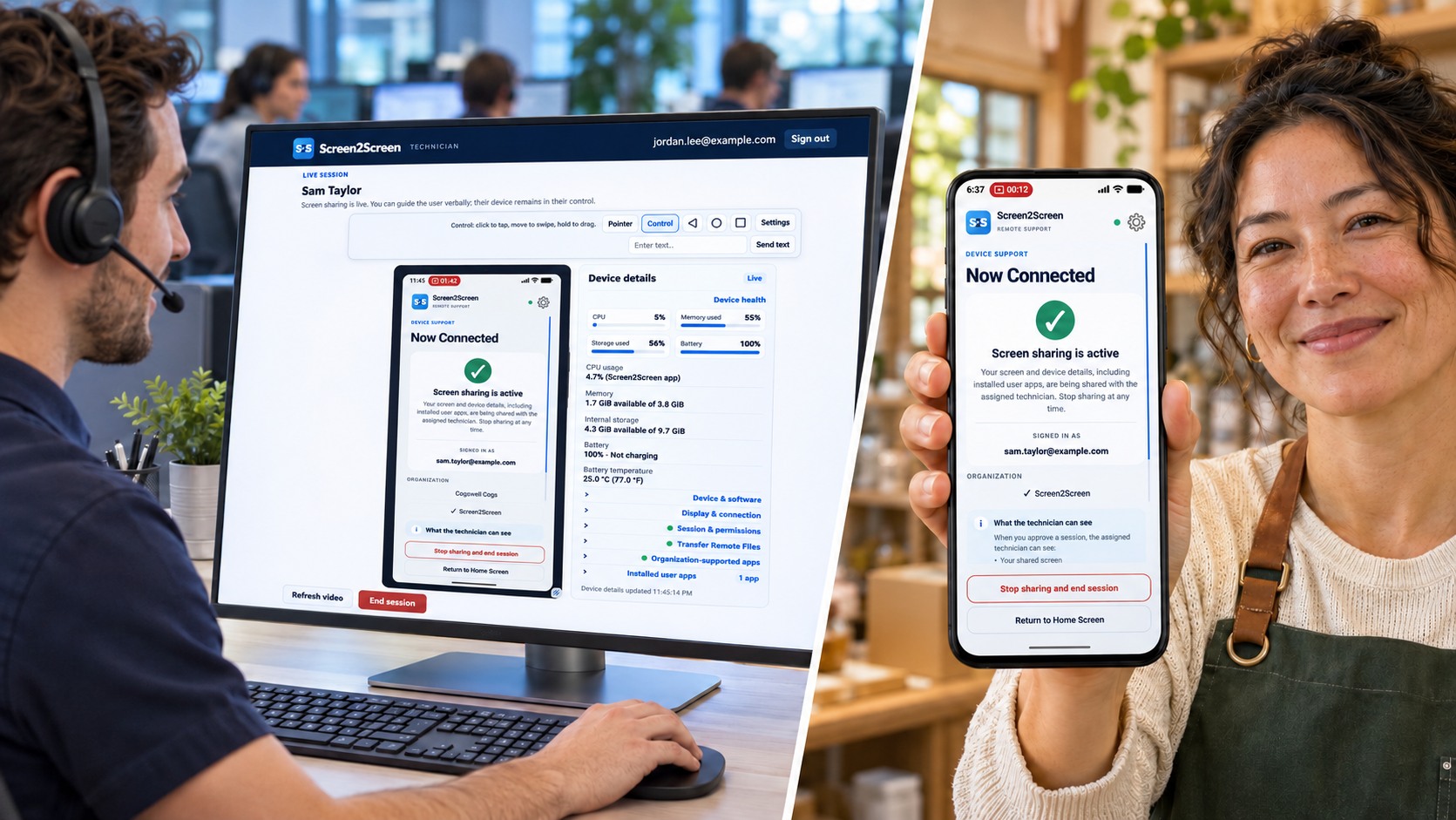
A guided session brings the person with the device and the person helping them onto the same screen.
An account admin adds technicians and approved Android end users to the organization.
A workspace with clear rolesThe technician accepts a user’s request or invites a Ready device from a computer, tablet, or phone browser—even while on the move.
No complex setup for the technicianThe user sees a clear explanation and chooses to begin screen sharing before the technician can view the screen.
Consent stays visible and clearWhen someone needs help on a phone, explaining every tap can take longer than solving the issue. Screen2Screen is designed to make that conversation easier.
Find your team's fitUse a browser on Windows, Mac, Linux, Android, or iOS to see the queue, join approved sessions, and help with View Only, View and Point, or permitted View and Touch.
Request help, respond to an Always On invitation, manage interaction and file permissions, and restore a valid sign-in when reopening the app.
The Android user reviews the technician request, approves screen sharing, and can end the session at any time.
Manage your Android support organization from a browser on Windows, Mac, Linux, Android, or iOS. Search people, manage roles, review history, set security policies, and manage billing. Team and above include bulk Android user import/export.
Expand device-health gauges, software and app versions, battery temperature, connection quality, and permission indicators. CPU readings identify their reported scope.
Practical tools for device troubleshooting, with permissions the Android user can review and control.
Browse a user-authorized folder and its subfolders, upload or download files up to 20 MB, and let the user change or revoke access from Android Settings.
See how it worksSend WPA2 or supported WPA3 Personal settings on Android 11+. The user reviews the request and approves saving the network in Android.
See how it worksSee supported-app installation status and versions. Request Open or Install, or request removal from the installed user-app list with the user’s confirmation.
See how it worksFind Always On devices by name or email, review freshness, versions, and battery, and distinguish an invitation sent from one received by the device.
See how it worksJoin an active session from another authorized technician window. The newer join takes over and disconnects the previous viewer.
See how it worksEnroll an authenticator voluntarily or require it by organization role. Set separate Admin and Tech inactivity timeouts and manage access from the Admin workspace.
See how it worksGive the people who support Android devices a consistent way to help—without a sprawling enterprise toolkit.
Guide employees through settings, account access, and everyday Android issues with a shared view of the device.
Support your team →Your technicians can be mobile, too. Open the Tech Workspace in a phone browser to support an Android user, check device details, and use the controls the user has enabled.
Connect your group →Give admins a place to manage who can use the companion app and which technicians can provide support.
Plan your rollout →Only continue if you trust the technician helping you.
Screen sharing is personal. Screen2Screen makes the connection an attended process, with a clear request and the Android user's approval before a technician can view the screen.
Choose View Only, View and Point, or View and Touch using the Android device’s settings and permissions. Always On keeps a device available for an invitation. The user approves screen sharing and can end the session at any time.
Match the interaction to the support task and the permissions enabled on the device. Always On adds availability for technician invitations.
Share the approved Android screen so the technician can see the issue and explain the next steps while the user performs the actions.
Add a technician pointer to highlight where to look or tap. The Android user enables Pointer control and grants Draw over other apps permission.
Let the assigned technician tap, swipe, drag, long-press, use navigation controls, open Android Settings, and enter text during an active session. The user enables Touch control and its Android Accessibility service. Text entry replaces the focused field’s contents.
Keep an opted-in device Ready for a technician invitation. The user accepts the invitation and approves Android screen sharing. Pointer and touch actions follow the device’s enabled permissions.
The user approves Android screen sharing before the screen becomes visible and can stop it at any time. Pointer control and Touch control are optional device settings.
Start with one concurrent connection, or choose Corporate with three. Pick the technician and Always On capacity that fits your organization.
A simple start for one technician.
Risk Free 7 day trial
One technician, with room for more ready devices.
Risk Free 7 day trial
A shared workspace for a small support team.
Risk Free 7 day trial
More technician seats for a growing team.
Risk Free 7 day trial
More staff and Always On capacity for daily support.
Risk Free 7 day trial
Three simultaneous sessions for a larger operation.
Risk Free 7 day trial
Connections are shared across your organization. A technician account can sign in and view the queue without using a connection. Starting, active, and reconnecting sessions use a connection; queued requests, unanswered invitations, and Ready devices do not.
Always On keeps opted-in devices available for a technician invitation. The Android user still approves screen sharing. Ordinary user-initiated support does not use an Always On device slot.
Monthly prices in USD, before applicable tax. Every standard plan includes 2 administrators and a Risk Free 7 day trial. The first charge is at trial end unless canceled beforehand. Basic and above can add concurrent connections for $60/month each. Bulk Android user import/export is available on Team and above. Solo and Solo+ include one connection with no connection add-ons. Ad-hoc Android users have no licensed user/device cap; their active sessions share the connection allowance. Always On allowances count enabled registrations, including offline devices.
Prices shown are monthly planning prices. Checkout is not available yet; share your interest and we’ll contact you with launch updates.
What teams usually want to know about a new support workflow.
Still have a question?Small and mid-size businesses, service teams, and organizations that need to help people using Android devices.
No technician app is needed. Tech and Admin workspaces run in modern browsers on Windows, Mac, Linux, Android, and iOS. The user receiving support installs the Screen2Screen Android app.
Yes. Sign in to the Tech Workspace from the browser on your Android phone or iPhone. Check the queue, invite an opted-in Ready device, join an approved session, view device details, and use pointer or Touch control when the user has enabled it. The Android user still approves screen sharing. You can provide support while you are mobile yourself.
No. The user reviews the request and explicitly approves Android screen sharing before the technician can see the screen. The user can stop sharing at any time.
Yes, when the Android user enables Touch control and its Accessibility permission. The assigned technician can then tap, swipe, drag, long-press, use navigation controls, and enter text during an active session. View Only and View and Point are available when touch interaction is not needed.
Yes. File transfer uses a folder chosen by the Android user and supports files up to 20 MB. Wi-Fi requests on Android 11+ support WPA2 or supported WPA3 Personal settings and require Android approval to save.
Organization admins manage technician, admin, and Android end-user access. Bulk Android user import/export is included on Team and above. Solo, Solo+, and Basic use individual invitations.
Each standard plan offers a Risk Free 7 day trial. Cancel before the trial ends to avoid a charge. Your selected plan bills automatically after the trial unless canceled.
Step-by-step guides for Android users, technicians, and organization administrators.
Sign in, request help, and manage screen-sharing, touch, file, and notification permissions.
Read the Android user guide →Work the queue, use Control and Device Info, transfer files, and help with apps and Wi-Fi.
Read the technician guide →Sign in, review organization access, invite people, and understand plan limits.
Read the admin guide →Explore the features and plan capacity that fit your team, then contact us about getting started.
Learn how sessions work, compare plan capacity, and review the safety controls before you get started.